Thursday, March 1, 2012

Xfce Tab and auto-complete terminal via VNC

I switched my windows system from Gnome to Xfce4 for a change, and ran into an interesting problem:  After I configured my ~/.vnc/xstartup profile to use the new window system, anytime I'd attempt to auto-complete in terminal (/ho<tab> for /home, for instance), the cursor would just blink, and no auto complete would occur.

This only seemed to happen with VNC sessions, but I did not explore this much because of the headless nature of my server.

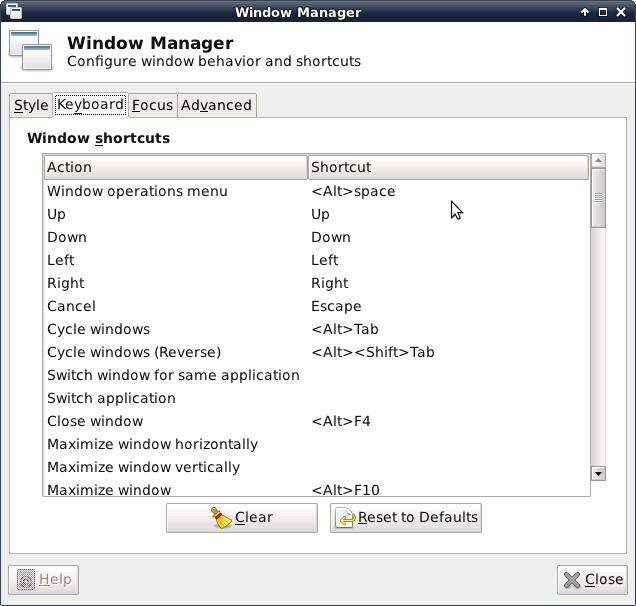
Turns out Xfce was assigning something called <Super>Tab to the Tab key...removing this binding allows auto-complete to function.

It can be reached by Settings --> Window Manager ---> Keyboard, as detailed in the following image:


Setting up an SSH server in a Debian derivative

sudo apt-get install openssh-server

done!


Tuesday, February 14, 2012

Handbrake GTK and Debian Squeeze

Handbrake isn't a stable package, you need to edit etc/apt/sources.list to allow testing packages temporarily...as in changing


  ###### Debian Main Repos
deb http://ftp.us.debian.org/debian/ squeeze main contrib non-free 
deb-src http://ftp.us.debian.org/debian/squeeze main contrib non-free


To


  ###### Debian Main Repos
deb http://ftp.us.debian.org/debian/ testing main contrib non-free 
deb-src http://ftp.us.debian.org/debian/testing main contrib non-free


Save, do a sudo apt-get update, followed by a sudo apt-get install handbrake-gtk, and watch those dependencies get met.

Remember, change back to the previous stable area when complete!

It will install a lot...or at least did for me.  But success is reached at the end.  

Monday, January 30, 2012

Sign extension in VHDL

Okay, I am using VHDL at my new job, and haven't used it in years.  I was trying to sign extend basic logic circuits and it was driving me crazy.  Finally I found this, and it seems like it works:

Input signal to sign extend was
 
wimax_out       :in  std_logic_vector(15 downto 0); -- output of wimax modulator


in the architecture area...


-- sign extent input to 18-bits
wimax_sign_ext_18                             <= wimax_out(15) & wimax_out(15) & wimax_out;

-- sign extend to 48-bit C input
wimax_sign_ext_48(47 downto 16)     <= (others => wimax_out(15));
wimax_sign_ext_48(15 downto 0)       <= wimax_out;


So concating works (&) and the others => work, at least according to modelsim and the 'signed decimal' signals.  I am willing to bet other methods work, or perhaps work more properly, but I do not care

Verilog all the way


Thursday, January 12, 2012

FPGA Timing

All right, I keep forgetting how FPGA timing works, so I'm writing it down here so I don't have to continue to search the internet

There are four main time periods we care about dealing with FPGA timing: Tclk, Tsu, Th, and Tco.


  • Tclk is the period of the clock the registers in question are synchronous to.
  • Tsu (Setup time) is the amount of time before the edge trigger of a register that the data must be settled on the input of the register
  • Th (Hold time) is the amount of time after the edge trigger of a register that the data must remain stable on the input of the register
  • Tco (Clock to output time)  is the amount of time from the edge trigger of the register to when the newly latched data is available as an output.

FPGA Timing Diagram Example

Here is an attached picture of three registers on the same clock, with the above time periods
From this we can see the amount of time a signal has to get from one register to another register in an FPGA is defined as
Time Skew = (Tclk - Tco - Tsu)

Skew is eaten into by delay that is a function of the speed of light, the trace material dielectric, the width of the trace, and probably something else I am forgetting.

These rules hold true in SDR or DDR -- we just care about the data with respect to the appropriate edge.  It can get more complicated with Center Aligned data or Edge Aligned, or dealing with external interfaces to the FPGA, but the main rule applies:

Data has to be there a certain amount of time before and after the sampling edge (Tsu and Th), and will take a certain amount of time before being available as an output (Tco), and is constrained by the clock period (Tclk) and the laws of physics.

Friday, October 21, 2011

Truecrypt and Debian

Future self - the Truecrypt installer will complain about (gksudo:21149): GLiB-CRITICAL **: g_str_has_prefix: assertion 'str != NULL' failed
Press Enter to exit...

If you try and install it via the downloaded installer.  What you should do is run the installer, and select 'Extract'.

Truecrypt Installation


It will dump a tar.gz into /tmp.

Extract that, and a folder called 'usr' will appear.  Copy that folder where-ever you want.  Inside BIN will be the truecrypt files.

You may need to play with permissions.

Sunday, October 16, 2011

Samba, Debian, and Windows 7

I have a headless linux computer I use mainly as a file server, but also as a bit of an open source science toy.  I can start a ssh / VNC to it from anywhere in the house.  Until recently, it was running Ubuntu 11.04.  I attempted an upgrade to 11.10, but something went wrong and it left the system in a less than optimal state.

That's all right though, I was looking for an excuse to simplify it to straight Debian.   The Debian install went well, though I noticed I took for granted many of the packages that came installed by default in Ubuntu. (make anyone?)  A few apt-gets fixed all of that, though, and I was left with the last headache I remembered:  properly configuring samba to work with my Windows 7 computer.

"This shouldn't be hard", I thought remotely.

The best walkthrough I found was on http://www.unixmen.com/linux-tutorials/1524-standalone-samba-in-debian-squeeze - I simplified it a bit, since I'm okay with home users having access to their own directories.

My path went something like this:


  1.  Make my Windows 7 workgroup name WORKGROUP by clicking start, right clicking "Computer", and hitting "properties" 
  2. Install samba on the Debian computer with 'sudo apt-get install libcupsys2 samba samba-common'
  3. I don't care about domain name for my simple setup, and I make sure my default workgroup is titled WORKGROUP during setup
  4. After completion, sudo edit /etc/samba/smb.conf and uncomment the line 'security=user'
  5. Under the [homes] section, add "valid users = my_username"
  6. change the "read_only" from YES to NO to enable writing
  7. save, quit, and restart samba with a sudo /etc/init.d/samba restart
  8. FINALLY, remember that samba doesn't have access to your Linux login....so you must set the samba password for your username separately via 'sudo smbpasswd -a username'
At this point, you should be able to access the linux home directory, from windows, by typing in the network IP address into the path of a window...such as
\\192.168.1.9 and login with your user name and samba password

Tada